How to use Youth Rollcall
Everything a teacher needs: logging in, and taking attendance for your class. Best on your phone.
Logging in
Your program lead adds you to Youth Rollcall. Once you have, you can log in any of these ways.
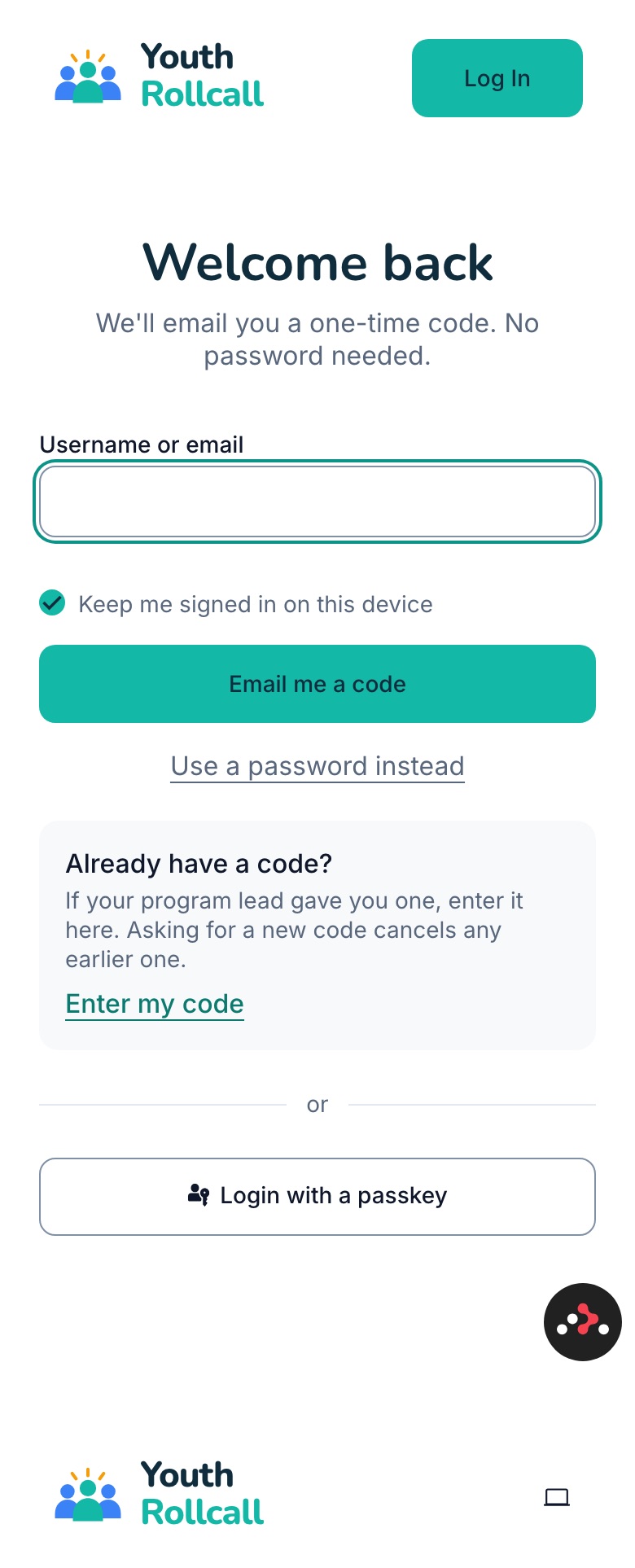
1. Email me a code (the default)
Open the login page, type your username or email, and tap "Email me a code". No password needed.
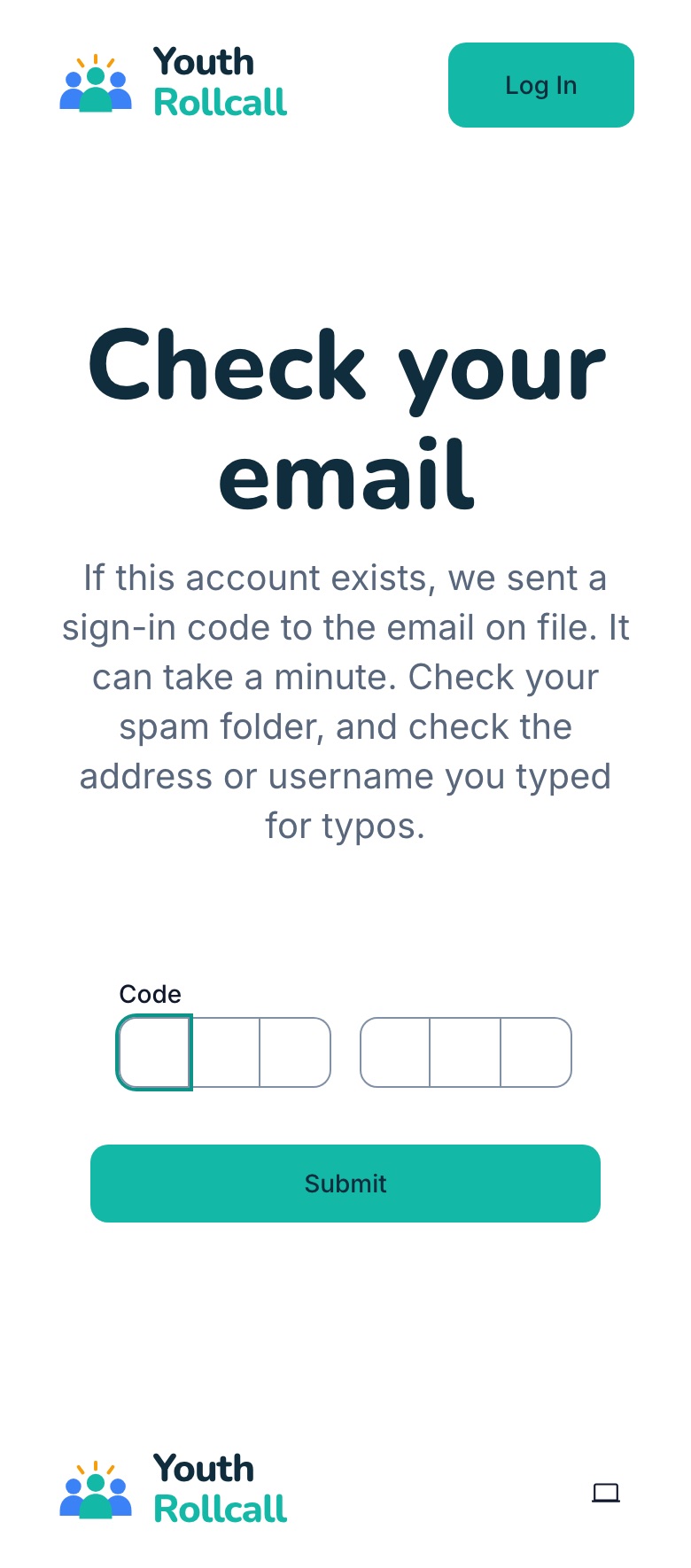
2. Type in the code
Check your email for a 6-digit code and type it into the boxes, then tap Submit. The email can take a minute; check your spam folder if it doesn't show up.
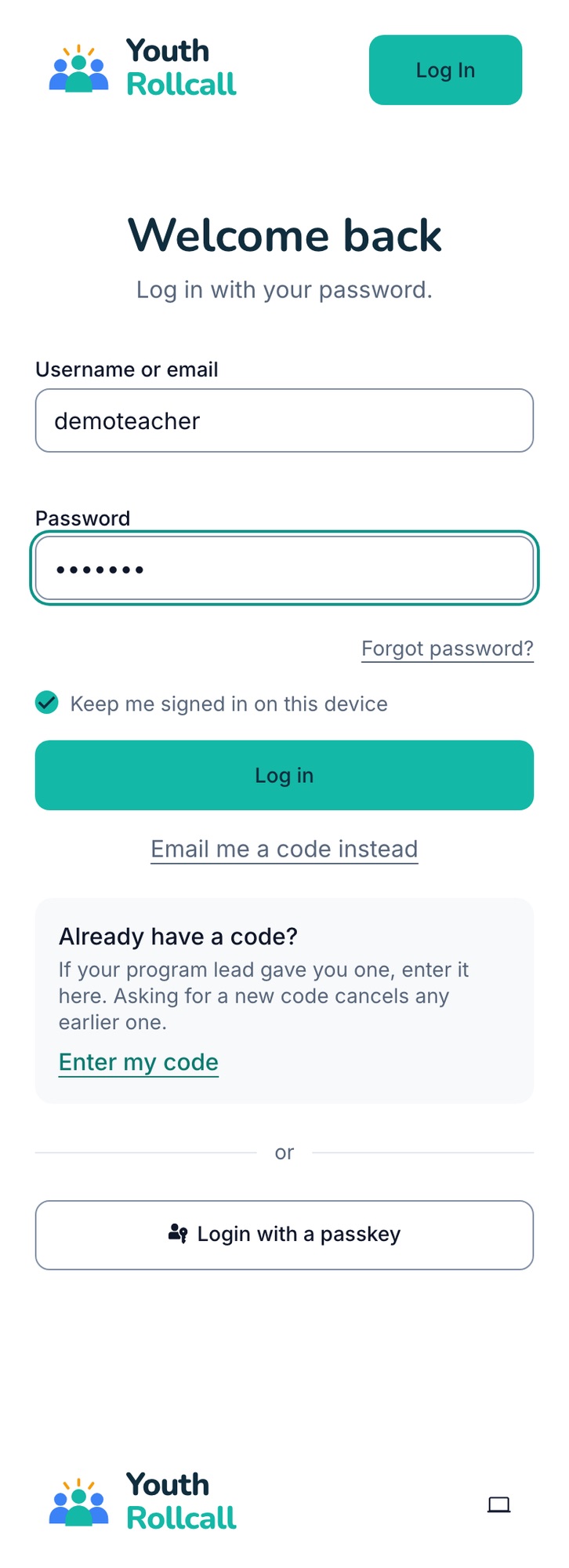
3. Or use a password
If you have a password, tap "Use a password instead", enter it, and tap "Log in". Forgot it? Tap "Forgot password?" to reset it.
More ways to sign in
Got a code from your program lead?
Tap "Enter my code" in the grey "Already have a code?" box on the login page and type it in. Asking for a new code cancels any earlier one.
Use a passkey
A passkey signs you in with your fingerprint, face, or phone lock, with no email wait. You set one up after you have signed in at least once (with an emailed code or a password): tap "Add a passkey" on the Today page, or find it in your profile settings. After that, tap "Login with a passkey" at the bottom of the login page.
Stay signed in
"Keep me signed in on this device" is ticked by default, so you won't have to log in every time you open the app on your own phone.
Trouble getting in? Ask your program lead to send you a sign-in code.
Resetting your password
Forgot your password? You can set a new one yourself. You can also skip the password and log in with an emailed code instead.
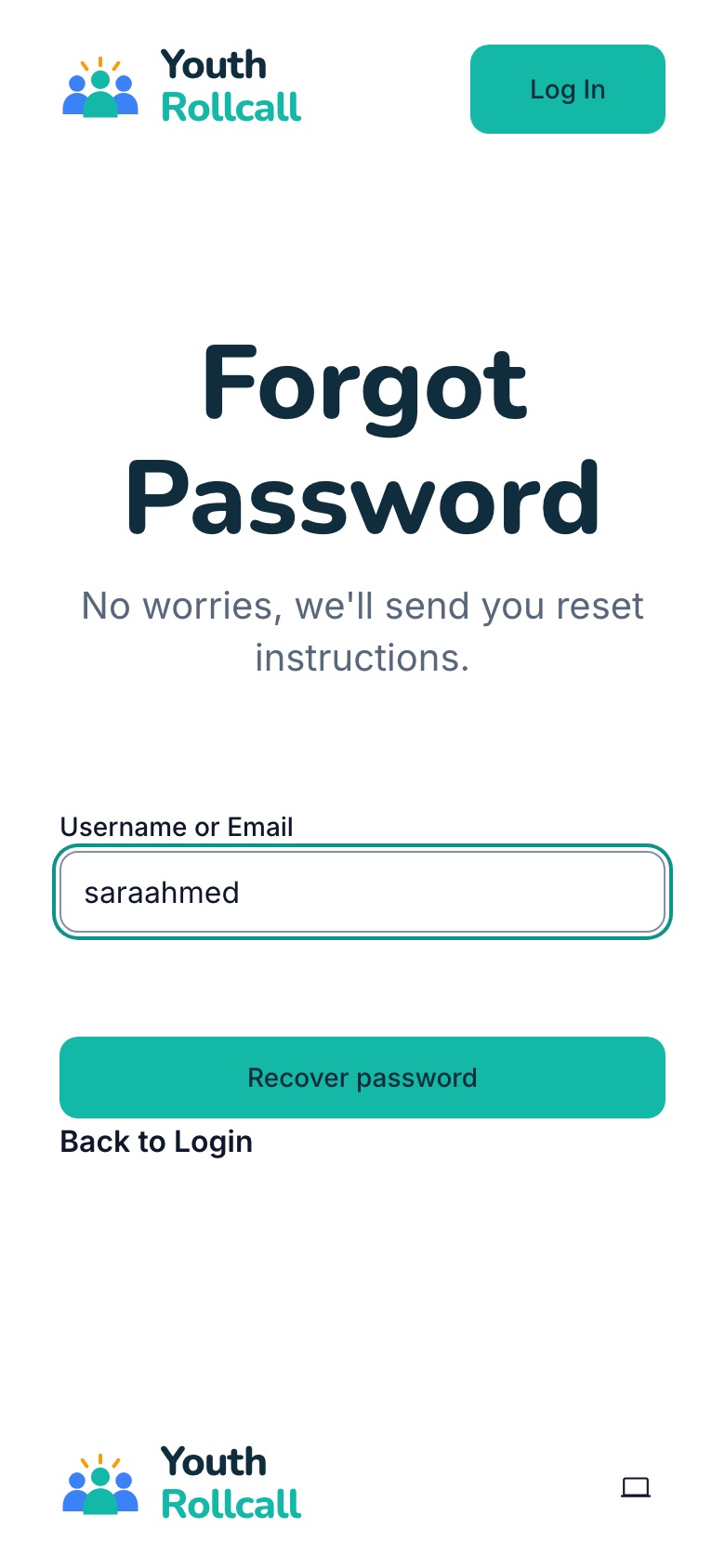
1. Tap "Forgot password?"
On the login page, tap "Use a password instead". The "Forgot password?" link is under the password box. Type your username or email and tap "Recover password".
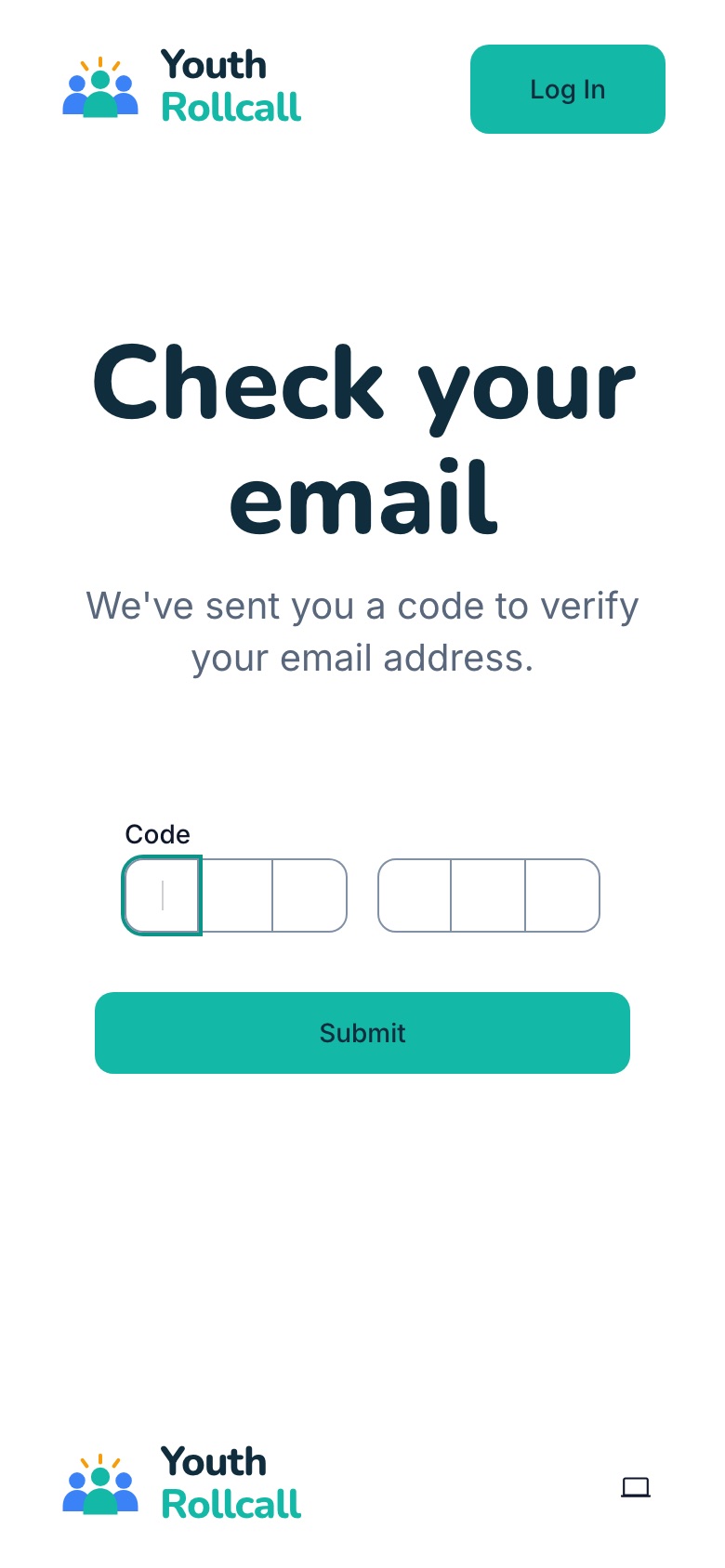
2. Enter the code from your email
We email you a reset code, and a link that does the same thing. Type the code in and tap Submit. The code works for 10 minutes; check your spam folder if it doesn't show up.
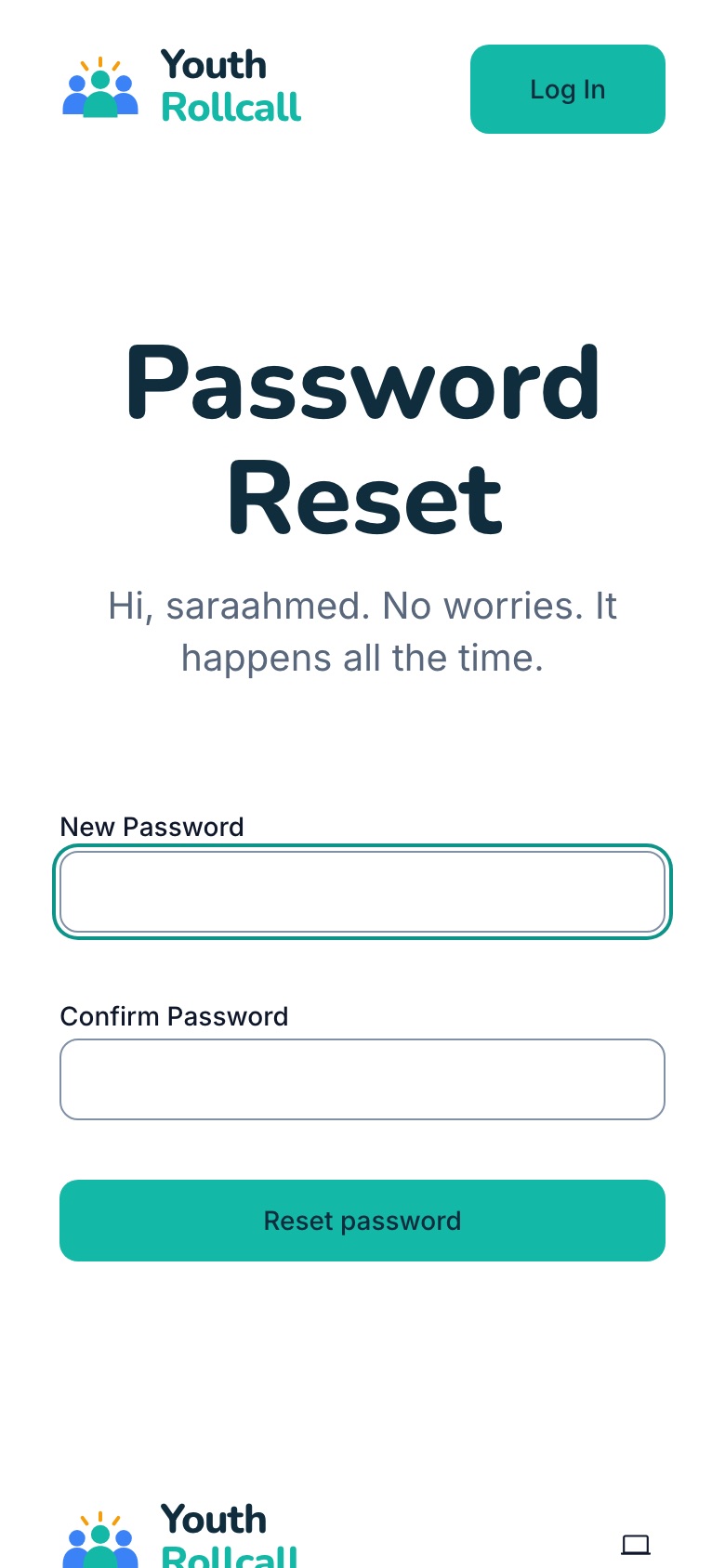
3. Choose a new password
Type your new password twice and tap "Reset password". Then log in with it.
Already signed in and just want a new password? Tap your name at the top, then Profile, then "Edit profile", and tap "Change Password".
Taking attendance
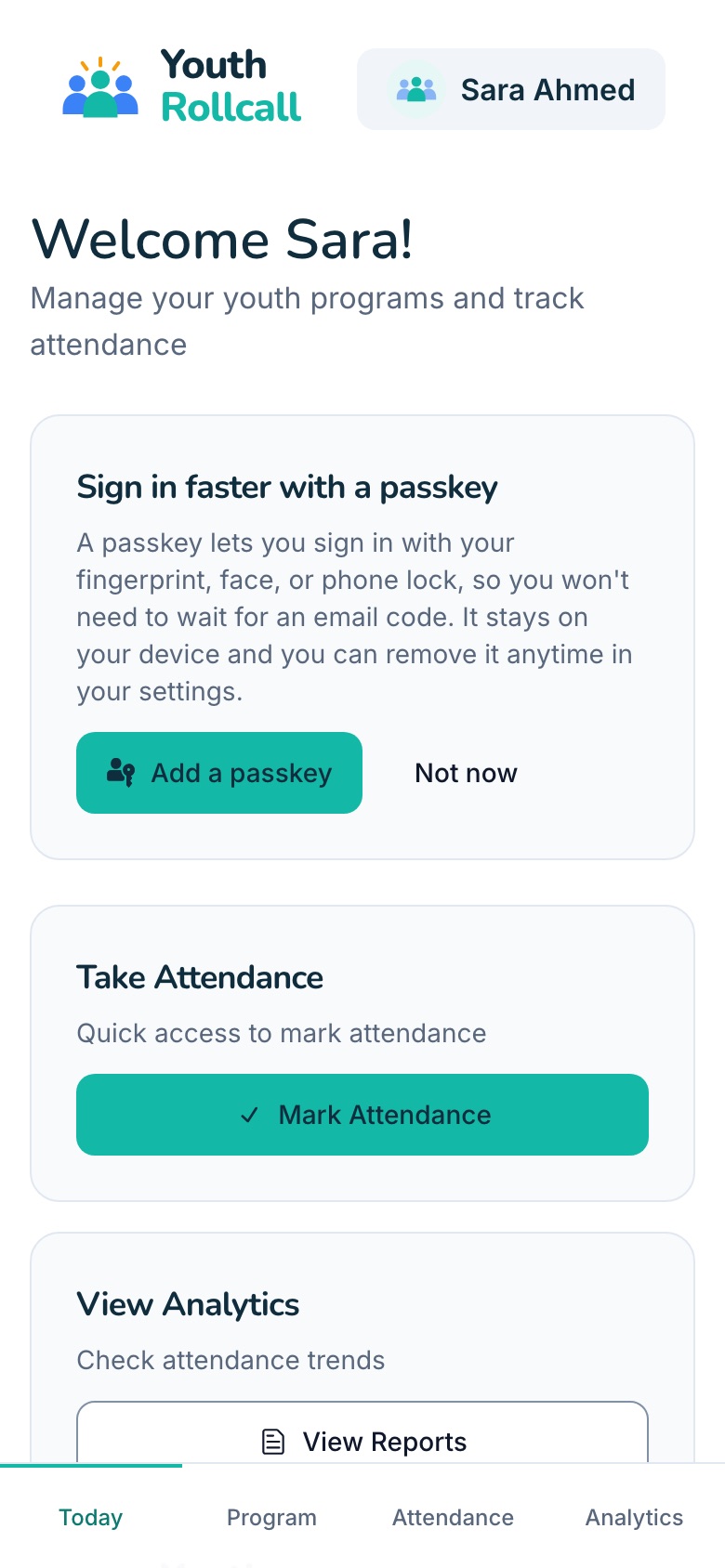
1. Open Attendance
After you log in you land on Today. Tap "Mark Attendance", or the Attendance tab at the bottom of the screen.
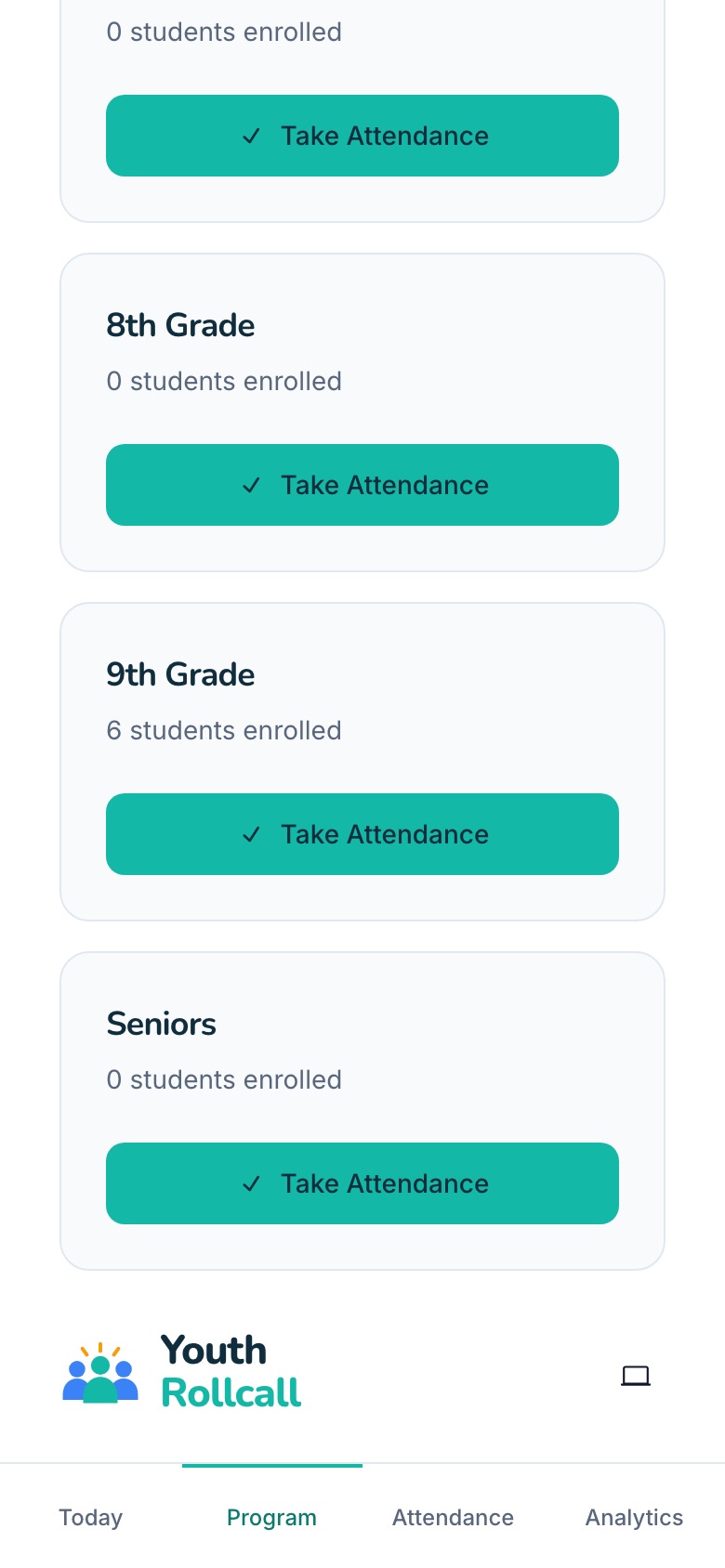
2. Pick your class
Find your class in the list and tap "Take Attendance". The list shows how many students are enrolled in each class.
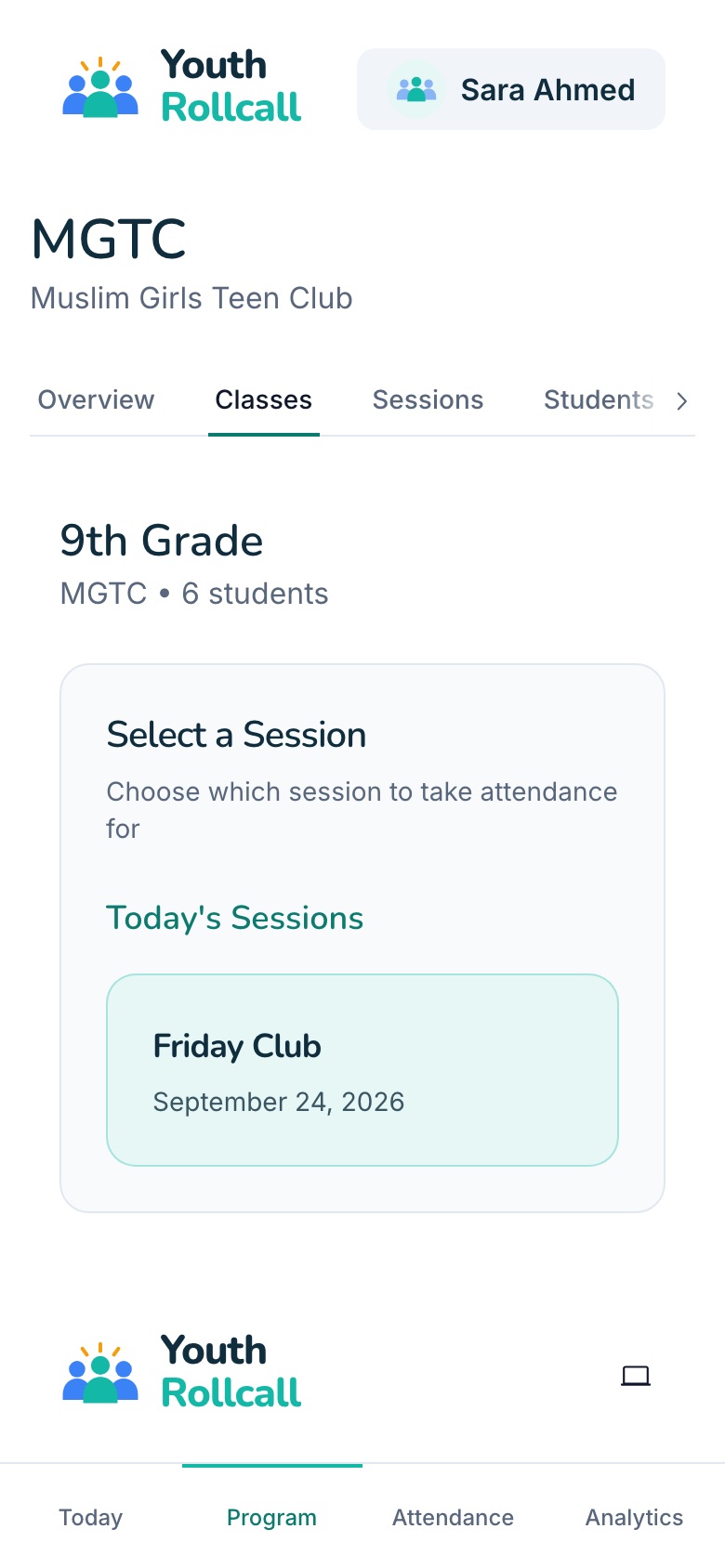
3. Pick today's session
Today's session is highlighted at the top. Tap it to start. If there is no session for today, ask your program lead to create one.
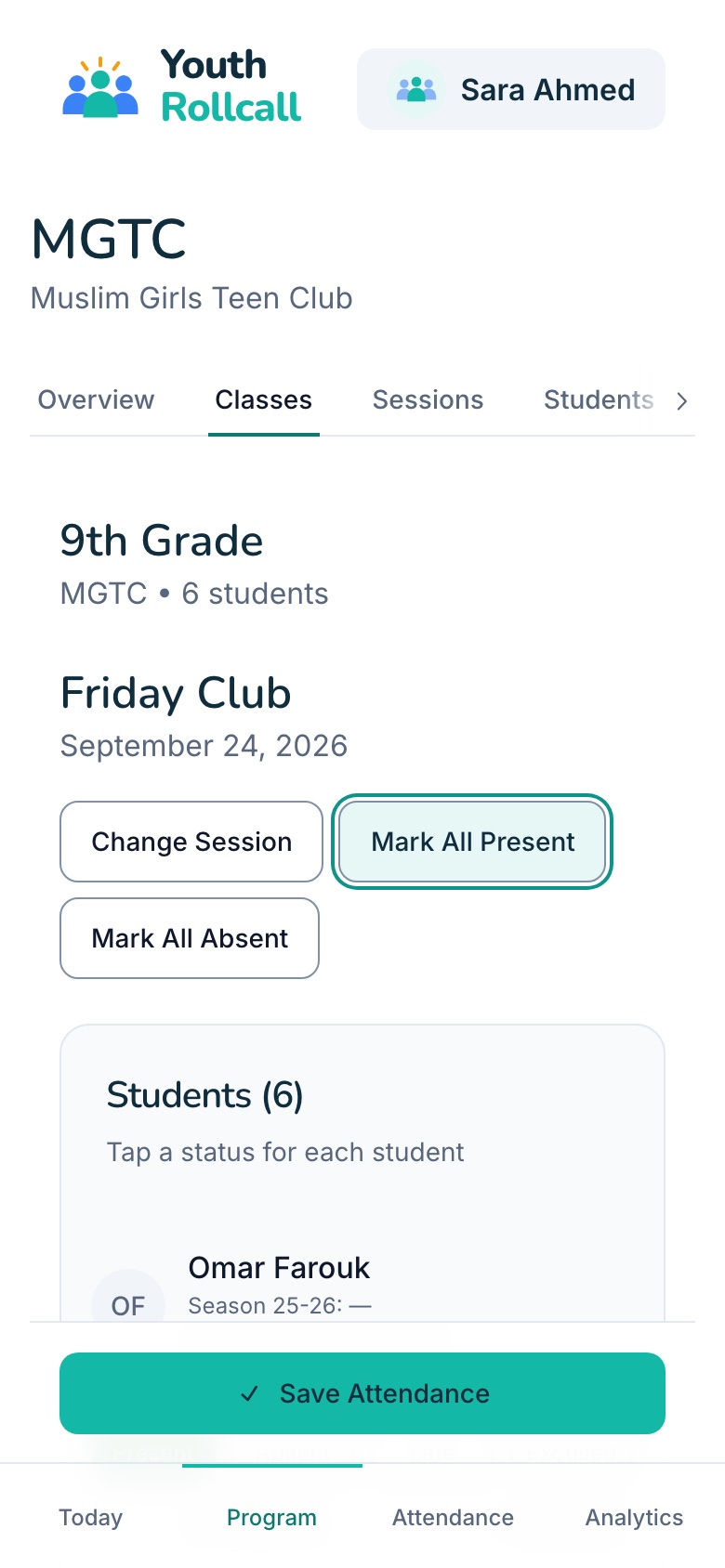
4. Tap a status for each student
Everyone starts as Absent. Tap "Mark All Present" to start from everyone here, then change anyone who was Late, Absent, or Excused. Tap "Add Note" to jot something down about a student.
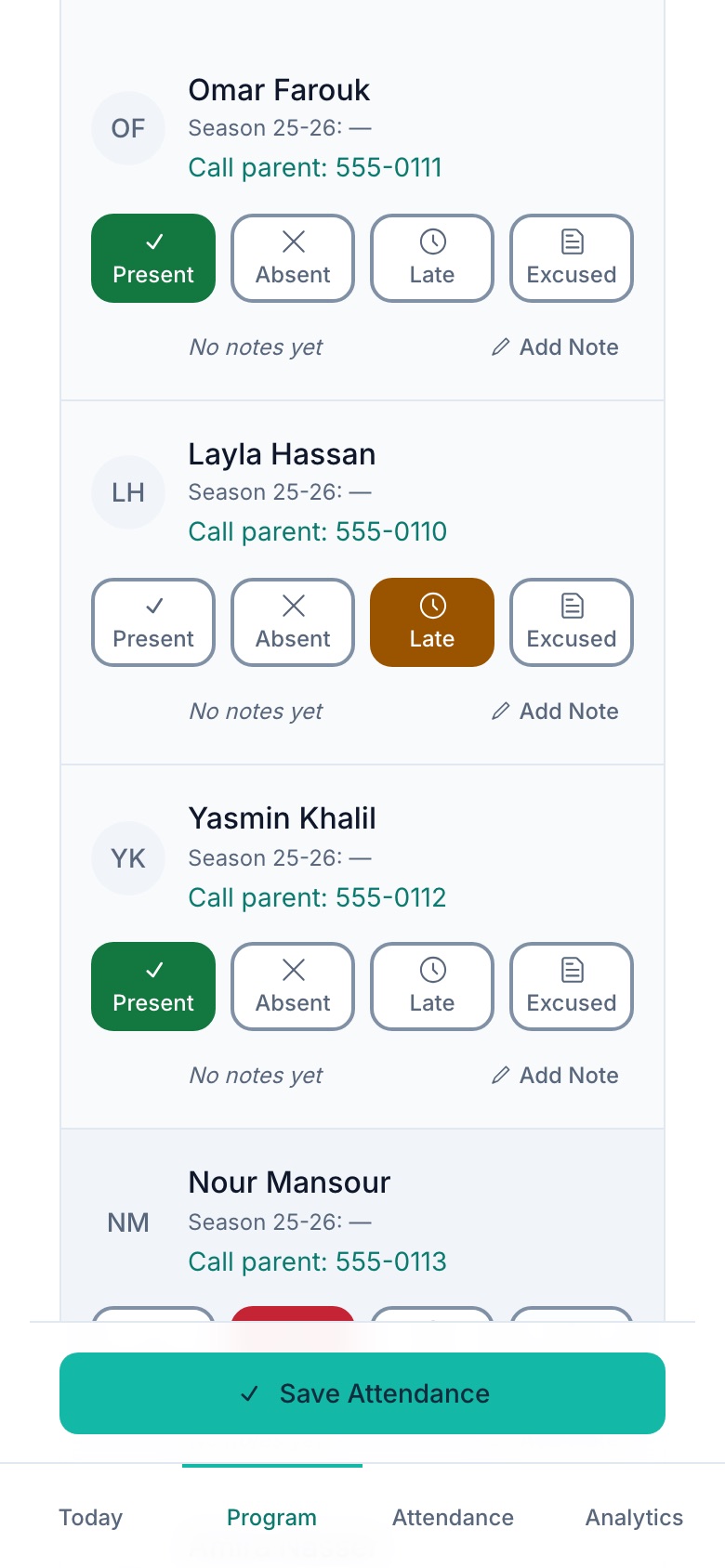
5. Check the list
Scroll through the students to check each one. The colour shows the status: green is Present, red is Absent, orange is Late, and purple is Excused. If you need to reach a parent, tap "Call parent".
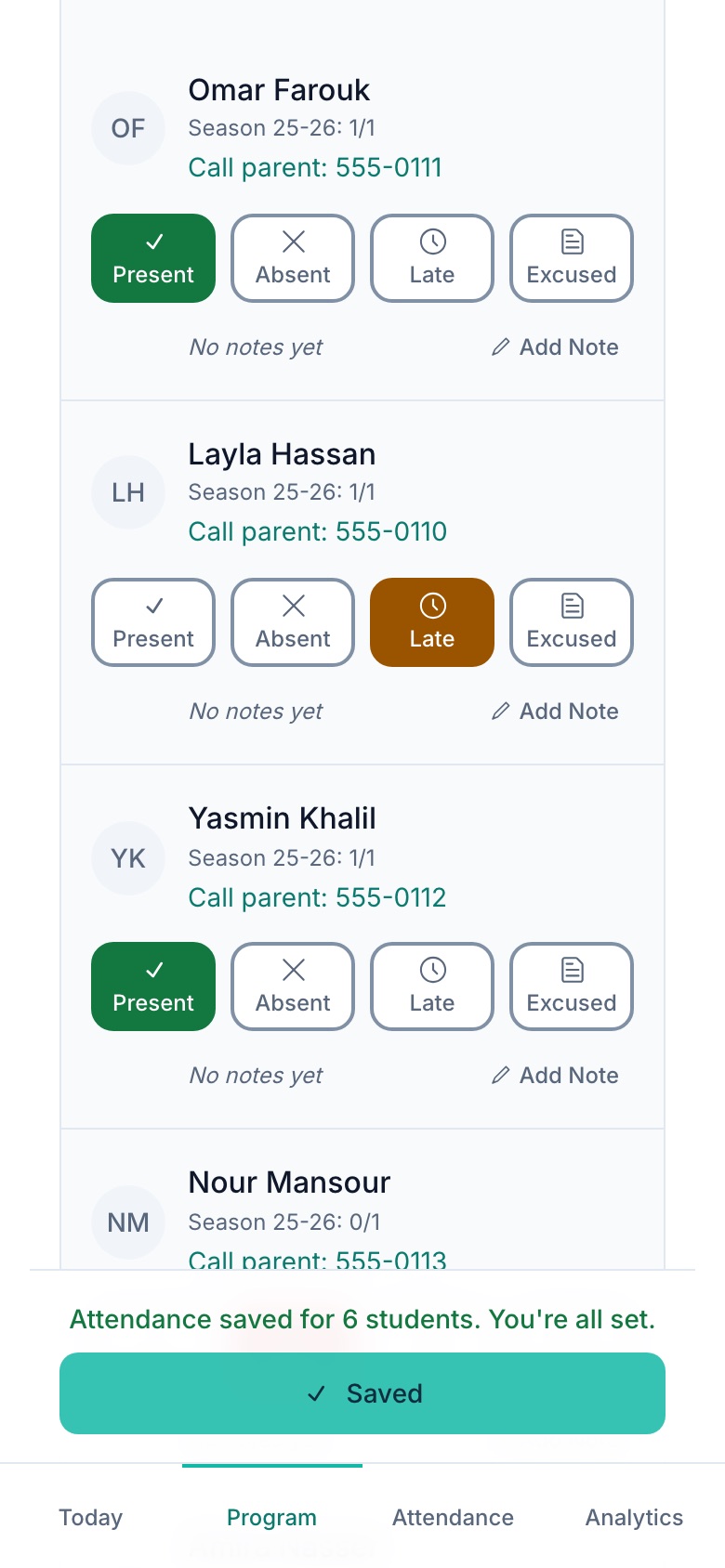
6. Tap Save Attendance
The Save button stays at the bottom of the screen. Tap it, and you'll see "Attendance saved" once it goes through. If it can't save, your selections stay on screen so you can try again.